

DirectAdmin Smarthost Setup
On DirectAdmin servers, MXGate is easy to use through the MXGate plugin added to the admin panel. The smarthost is set up after a connection test, SPF and DKIM records are managed in bulk, and inbound filtering can be switched on with one click if you want it. You do not need to edit Exim files by hand; the plugin leaves Exim’s main configuration untouched.
What does the MXGate DirectAdmin plugin do?
The plugin writes DNS records through DirectAdmin’s own DNS management and DKIM keys with DirectAdmin’s own tool, and its automatic actions run on their own when a domain or domain pointer is added.
Admin panel → Plugins → MXGate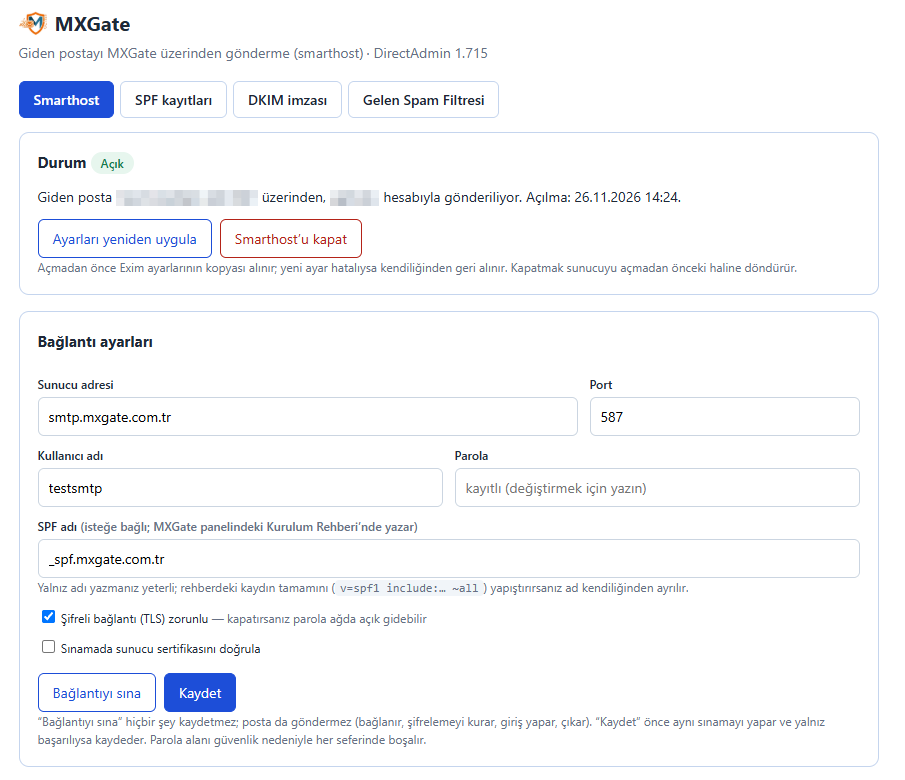
Smarthost setup
Enter the server address, port and SMTP account; the connection is tested before saving.
- TLS and login are verified without sending mail
- Exim settings are backed up on switch-on; a faulty setting rolls back automatically
- An existing hand-made smarthost setting is detected and taken over on approval
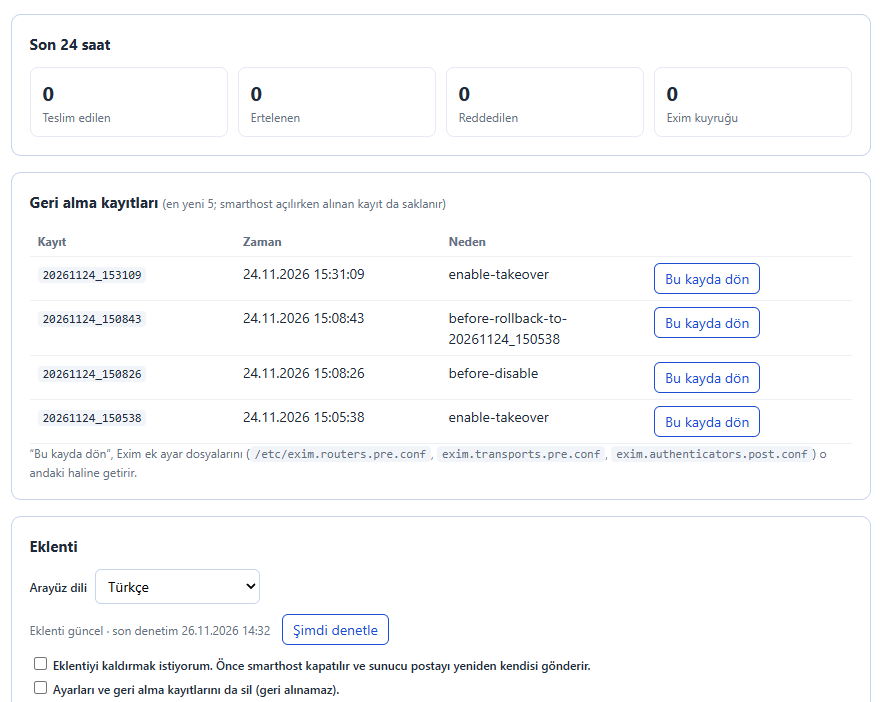
Rollback history
A snapshot is taken before every change.
- One-click return to the previous state
- Switching the smarthost off restores the server exactly
Last 24 hours summary
Mail traffic on one screen, explained in plain language.
- Delivered, deferred and rejected counts
- Queue status and latest errors
SPF management
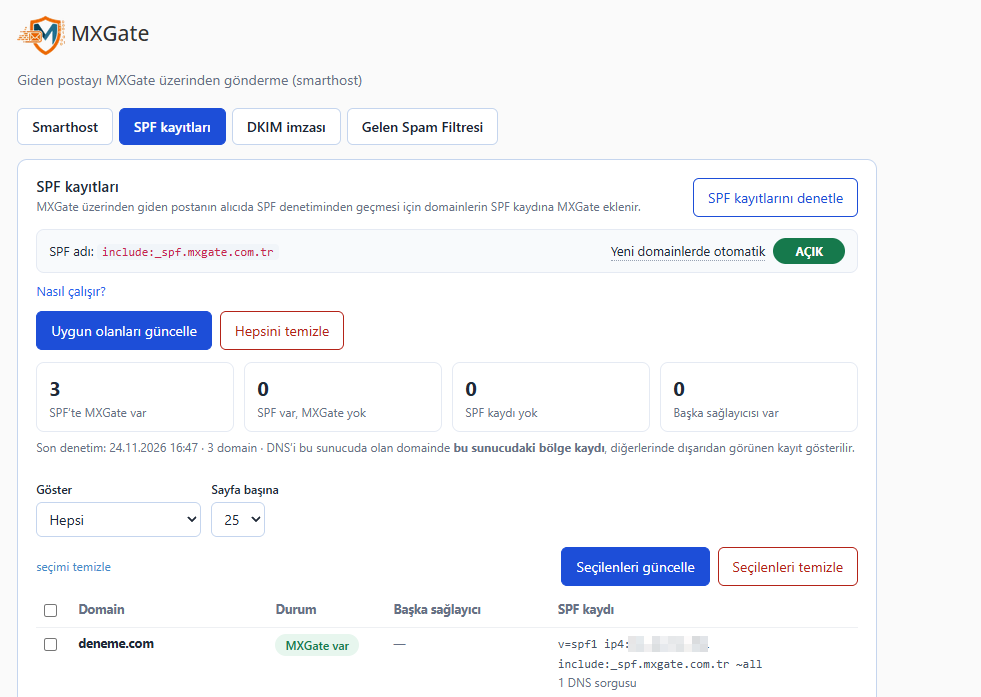
MXGate is added to your domains’ SPF records.
- Domains on Google, Microsoft or Yandex are protected in bulk actions
- You can still change them one by one
- Filtering, paging and a DNS lookup limit warning
DKIM management
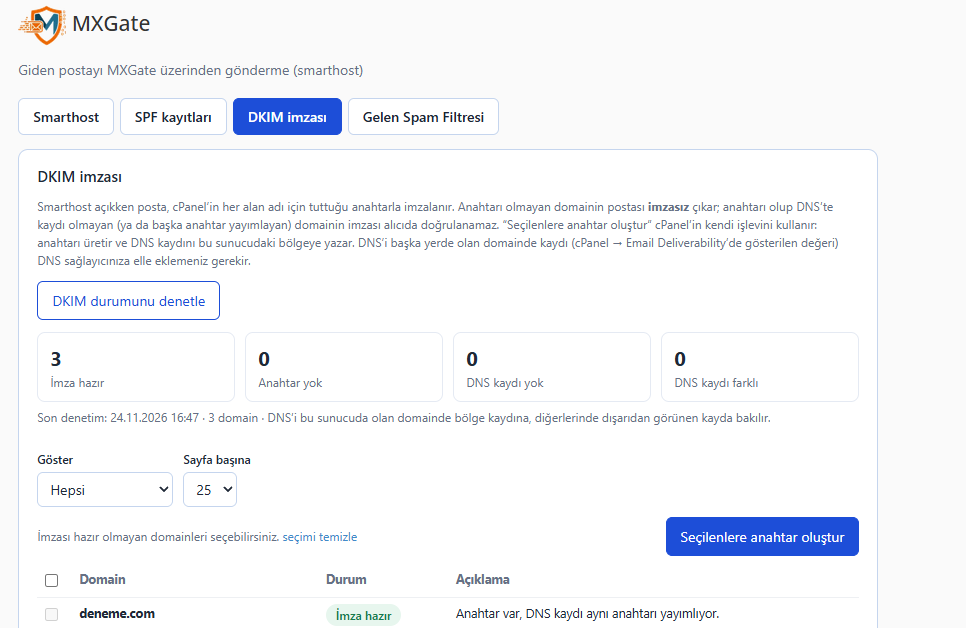
Every domain’s signing status in one list.
- Key present, DNS record published, visible from outside
- Missing keys are created with one click with DirectAdmin’s own DKIM tool
Automatic for new domains
Optional: no need to repeat the setup for new domains.
- SPF and DKIM are applied when a domain or domain pointer is added
- Automatic import and MX option for inbound filtering
Inbound spam filter
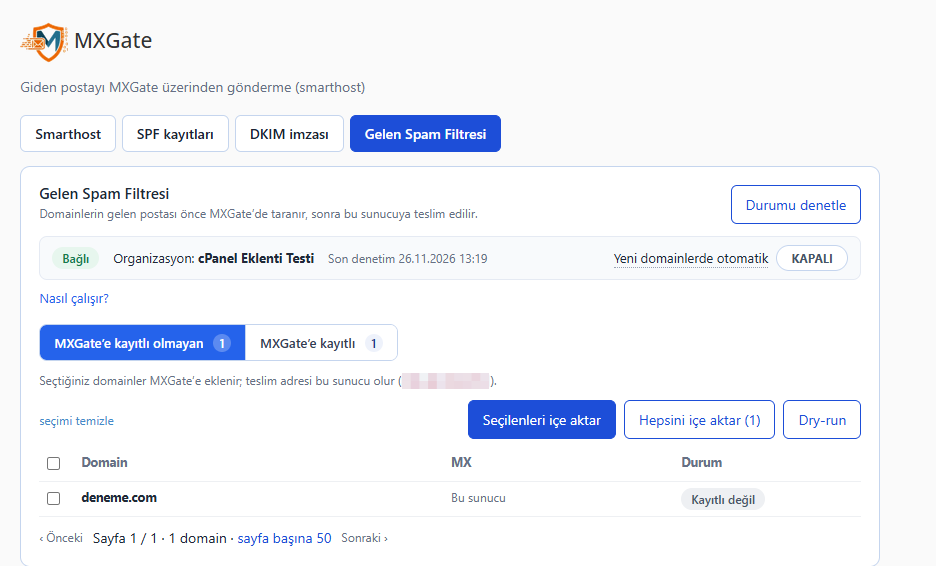
MX records are switched to MXGate with one click; mail is scanned first, then delivered to your server.
- “Dry run” preview without changing anything
- “Undo” restores the old MX record exactly
- Domains hosted elsewhere need separate confirmation; unproven ownership goes to the organisation administrator for approval
Safe updates
New releases are announced on the plugin page.
- One-click update
- Signed packages; never installed unless the signature verifies
Everyday management
Interface in Turkish (default) and English.
- Suspended accounts are skipped and reported by name
- Removable from the panel; the smarthost is switched off first
The path mail takes out of your DirectAdmin server
Today your DirectAdmin server delivers email straight to the recipient’s server, and whether it arrives is decided by the reputation of your server’s IP address alone. Once the smarthost is switched on with the plugin, the same message is handed to MXGate first, inspected there, and sent on from continuously monitored addresses.
DirectAdmin smarthost setup: with the plugin or by hand
The recommended route is the MXGate plugin: every step is done from the admin panel and you do not need to edit files on the server. If you prefer, you can make the same configuration without the plugin by editing three Exim additional config files.
-
Get the plugin from the Setup Guide
Once you have the service, open the Setup Guide in the MXGate management panel. The plugin is downloaded from there and installed on the DirectAdmin server with a single command.
Packages are signed and are not installed unless the signature verifies. Later releases are announced on the plugin page and updated with one click. -
Open the plugin in the admin panel
Log in to DirectAdmin with the admin account and open MXGate from the Plugins menu. The interface is in Turkish by default and can be switched to English.
-
Switch on the smarthost after a connection test
Enter the server address, port and MXGate SMTP account. Before saving, the connection is tested without sending mail: TLS and login are verified. A backup of the current Exim settings is taken when you switch it on, and a faulty new setting is rolled back automatically.
Exim’s main configuration is left untouched. The plugin uses DirectAdmin’s additional configuration files. An existing hand-made smarthost setting on the server is detected and taken over with your approval. -
Fix SPF and DKIM status
See the SPF and DKIM status of every domain in the list. Add MXGate to the SPF record, and create missing DKIM keys with one click using DirectAdmin’s own tool. DNS records are written through DirectAdmin’s own DNS management.
Domains that use another mail provider such as Google, Microsoft or Yandex are protected during bulk actions; you can only change them by selecting them one by one. -
Optionally switch on inbound filtering
Import the domains into MXGate and switch their MX records to MXGate with one click; inbound mail is scanned first and then delivered to your server. Run a “dry run” first to see what would happen without changing anything.
“Undo” restores the old MX record exactly. Domains whose ownership cannot be proven wait for the organisation administrator’s approval in the MXGate panel. -
Monitor from the last 24 hours summary
Send a message from an account on the server to an external address, then check the delivered, deferred and rejected counts, the queue and the latest errors on the plugin’s summary screen.
Setup complete. If you switch on automatic SPF/DKIM and automatic import for new domains, you will not need to repeat these steps for domains and domain pointers added later.
DirectAdmin’s Exim configuration includes the three additional files below on its own, so you never touch the main exim.conf. You can copy the code blocks; only the username and password placeholders in step two need to be replaced.
-
Back up the existing additional config files
Connect to the server over SSH as root. If the three files you are about to edit already exist, copy them first.
SSH · BACKUP copycd /etc for f in exim.authenticators.post.conf exim.transports.pre.conf exim.routers.pre.conf; do [ -f "$f" ] && cp "$f" "$f.mxgate-bak" done
Do not combine with the plugin: the MXGate DirectAdmin plugin manages the same files. It detects a hand-made smarthost and takes it over with your approval; do not edit both at the same time. -
Authentication: exim.authenticators.post.conf
Add the definition below to /etc/exim.authenticators.post.conf. The username and password are sent only when connecting to the MXGate server.
/etc/exim.authenticators.post.conf copysmarthost_auth: driver = plaintext public_name = LOGIN client_send = : MXGATE_KULLANICI_ADI : MXGATE_SIFRE client_condition = ${if eq{$host}{smtp.mxgate.com.tr}}Careful: theclient_sendline must start with a colon:: username : password. Replace the placeholders with the credentials from your MXGate panel, and do not wrap the password in quotes. -
Transport: exim.transports.pre.conf
Add the transport definition below to /etc/exim.transports.pre.conf. The connection is made on port 587 with TLS; the last line keeps DirectAdmin’s DKIM signing active on this transport too.
/etc/exim.transports.pre.conf copyremote_smtp_smart: driver = smtp port = 587 hosts_require_auth = smtp.mxgate.com.tr hosts_require_tls = smtp.mxgate.com.tr tls_sni = smtp.mxgate.com.tr message_linelength_limit = 4096 .include_if_exists /etc/exim.dkim.conf
Thehosts_require_tlsline prevents falling back to an unencrypted connection, so credentials and message content always travel encrypted. -
Routing: exim.routers.pre.conf
Add the router definition below to /etc/exim.routers.pre.conf. All mail not addressed to a local domain leaves through MXGate after passing DirectAdmin’s sending limit check.
/etc/exim.routers.pre.conf copysmart_route: driver = manualroute domains = ! +local_domains condition = "${perl{check_limits}}" transport = remote_smtp_smart headers_add = ${if !eq{$original_domain}{$domain}{X-Forwarded-For: $original_local_part@$original_domain}} headers_add = X-AuthUser: $authenticated_id ignore_target_hosts = 127.0.0.0/8 route_list = * smtp.mxgate.com.tr::587Thedomains = ! +local_domainsline keeps mail between domains on the server local, and thecheck_limitscondition preserves the user sending limits defined in DirectAdmin. Do not remove these lines. -
Restart Exim and watch the log
Restart Exim, send a message from an account on the server to an external address, and confirm in the log that it left through the new router and transport.
SSH · RESTART · TEST copysystemctl restart exim # Watch the live log tail -f /var/log/exim/mainlog # The line you should see in the log => kullanici@ornek.com R=smart_route T=remote_smtp_smart
Rollback: delete the three definitions you added (or put the.mxgate-bakbackups back) and restart Exim; the server goes back to sending mail directly as before.
Questions from DirectAdmin administrators
Do I need to edit Exim files by hand for a DirectAdmin smarthost setup?
No. The MXGate DirectAdmin plugin sets up the smarthost from the admin panel and leaves Exim’s main configuration untouched, using DirectAdmin’s additional configuration files instead. It tests the connection before saving, backs up the current settings when switching on and rolls back a faulty setting automatically. If you prefer, you can make the same configuration without the plugin using the three files in the Manual configuration tab.
Where do we download the plugin?
Once you have the service, the plugin is downloaded from the Setup Guide in the MXGate management panel and installed on the server with a single command. Packages are signed and are not installed unless the signature verifies.
Can we roll the setup back?
Yes. Switching the smarthost off returns the server exactly to its previous state. Because a snapshot is taken before every change, the rollback history takes you back with one click, and for inbound filtering “Undo” restores the old MX record exactly. The plugin itself can be removed from the panel; the smarthost is switched off first.
Does this setup affect incoming email?
The smarthost only changes the path of mail leaving the server; your MX records stay as they are. If you also want inbound mail to pass through MXGate, you switch on the plugin’s inbound filter separately; that step is optional and can be undone with one click.
What happens to domains whose mail is hosted at Google or Microsoft?
They are protected during bulk SPF actions; you can only change them by selecting them one by one. When importing into inbound filtering, domains whose mail is hosted elsewhere also trigger a warning and need your separate confirmation.
Do we have to repeat this for domains added later?
Not if you choose so. With the automatic option on, SPF and DKIM are applied as soon as a new domain or domain pointer is added to the server, and inbound filtering has an automatic import and MX option too. Suspended accounts are skipped and reported by name.